Official Manual · First-Time Setup
Shadowrocket Quick Start
Work through these steps in order: add your connection details, choose a mode, connect, verify access, and troubleshoot if needed. This guide covers first-time use on iPhone and iPad, with a focus on completing one full connection. See the dedicated guides for rule details and more complex issues.
The screenshots below are official App Store images, included to help identify screens and fields. The options shown may vary depending on the selected Type and app interface. Always enter values from your own original connection details.
Step 1 · Add Server / Subscribe
Add a server or import a subscription
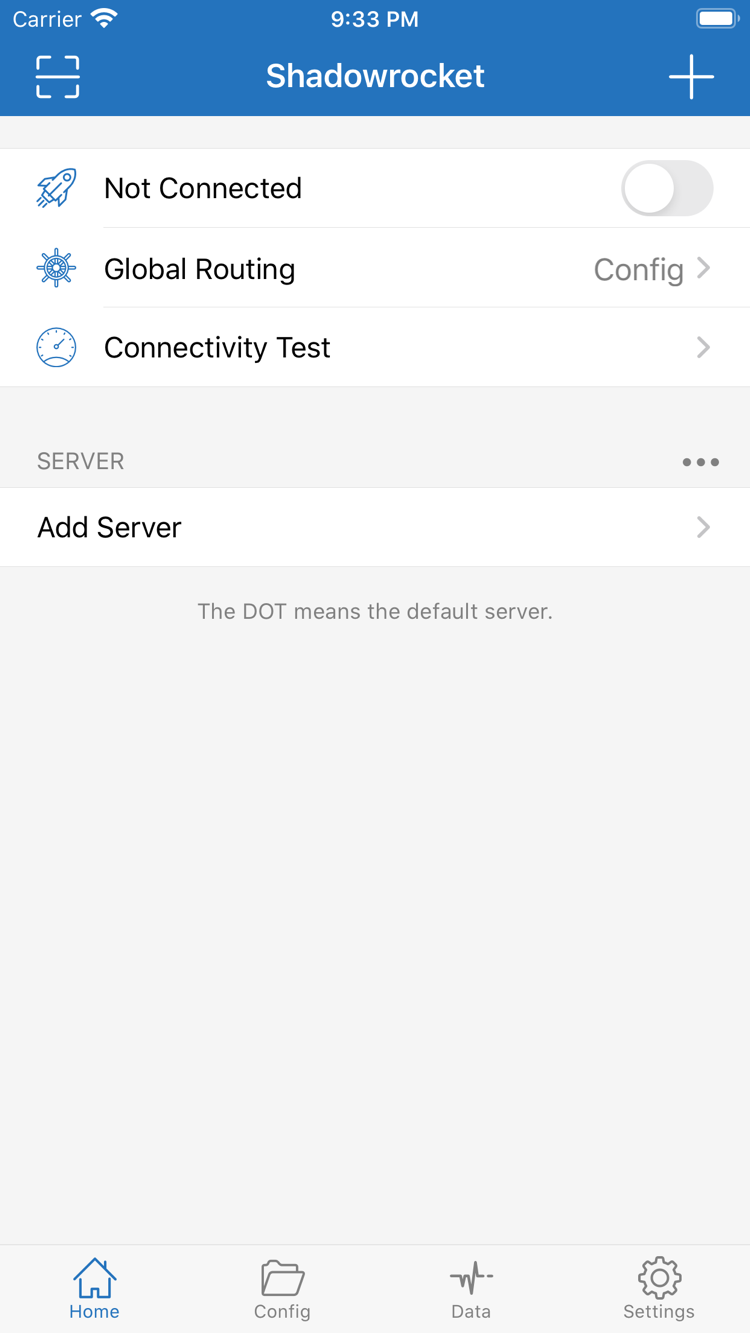
After opening Shadowrocket, stay on Home and find the SERVER section near the bottom. This is where you choose the server to connect to. If you’ve just installed the app and haven’t imported anything, an empty list is normal. Tap Add Server and choose the method that matches the details you have; there’s no need to enter server details manually and import a subscription as well.
If you have details for a single server
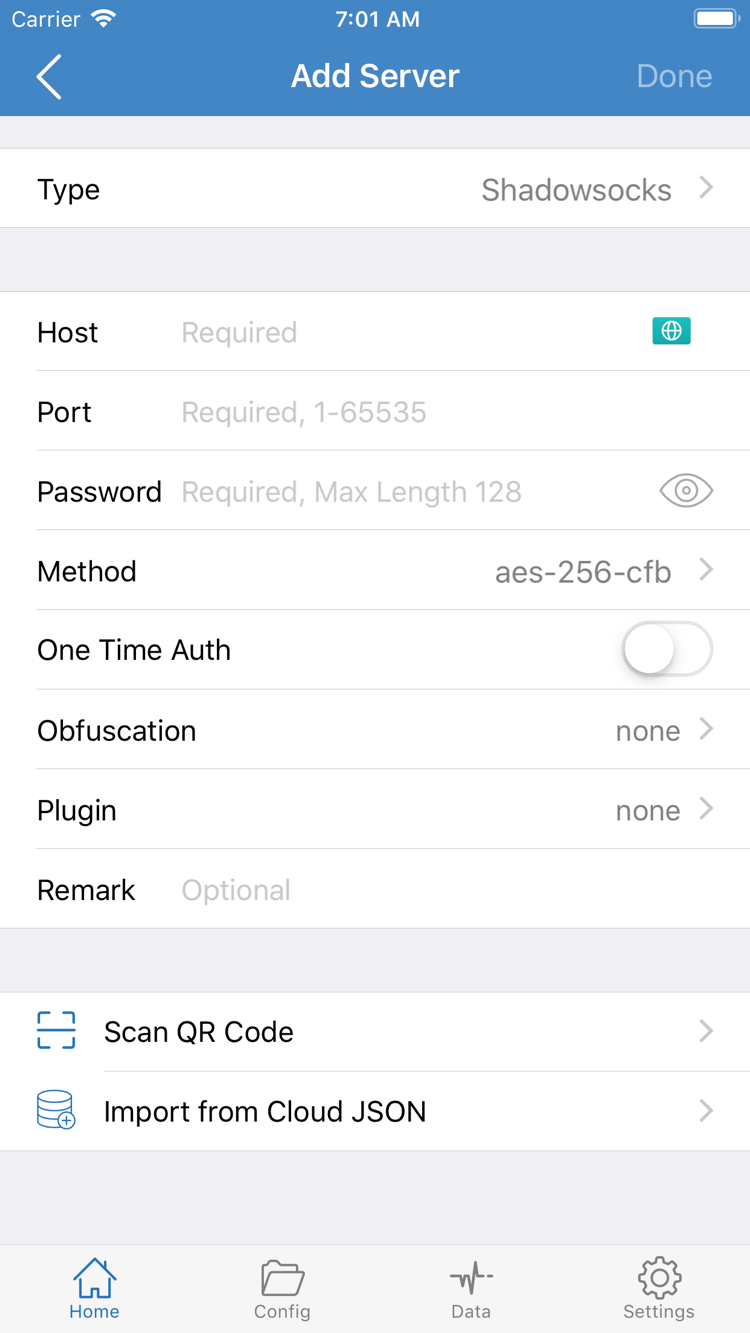
In Add Server, tap Type, choose the protocol specified in your connection details, and fill in the fields it requires. The screenshot shows one form with Host, Port, Password, and Method. Fields can change when you select a different Type, so this form is not a universal template for every protocol. Parameters for Shadowsocks, VMess, VLESS, Trojan, and other protocols aren’t interchangeable; don’t guess based on similar names.
Enter the server address in Host, the corresponding port in Port, and the supplied credentials in fields such as Password. If Method is required, match it exactly as well. After pasting, check for leading or trailing spaces, line breaks, and symbols replaced by your keyboard. If your details include TLS, a server name, or other transport parameters, enter those too. Don’t skip them just because the commonly used fields are filled in. Save, return to Home, confirm the entry appears under SERVER, then select it.
If you have a QR code, use Scan QR Code on the Add Server page to scan your own details. After scanning, verify the Type and address. Import from Cloud JSON is for the corresponding structured data format, not a standard subscription link; use it only if your information is explicitly provided in that format. If you’re unsure what a field means, check the glossary instead of trying different protocol types at random.
If you have a subscription link
Open Add Server again, choose Subscribe under Type, enter your complete subscription link in the relevant address field, and save it using the option shown on the page. Subscription links often contain authentication information. Copy the full path and query parameters—not just the website domain—and don’t add quotation marks or explanatory text. Treat the link as sensitive information; don’t include it in public screenshots or troubleshooting records.
Return to Home and check that the relevant group and server entries appear. If the subscription was saved but its contents haven’t been retrieved yet, update it and wait for the result. Importing a subscription and selecting a server are two consecutive steps: after the list appears, you still need to select an entry before continuing. If import fails, keep the error message and check the link rather than changing Global Routing straight away; a routing mode can’t fix a malformed or expired subscription link.
Step 2 · Global Routing / Config
Choose a Global Routing mode
After adding a server, return to Home and open Global Routing. This setting determines how requests are handled; it’s separate from choosing a server. For your first test, decide whether you want to check the proxy route or use existing routing rules, then choose the appropriate mode. Turning on the switch at the top does not prove that all requests are going through the server.
Config: use the active rules
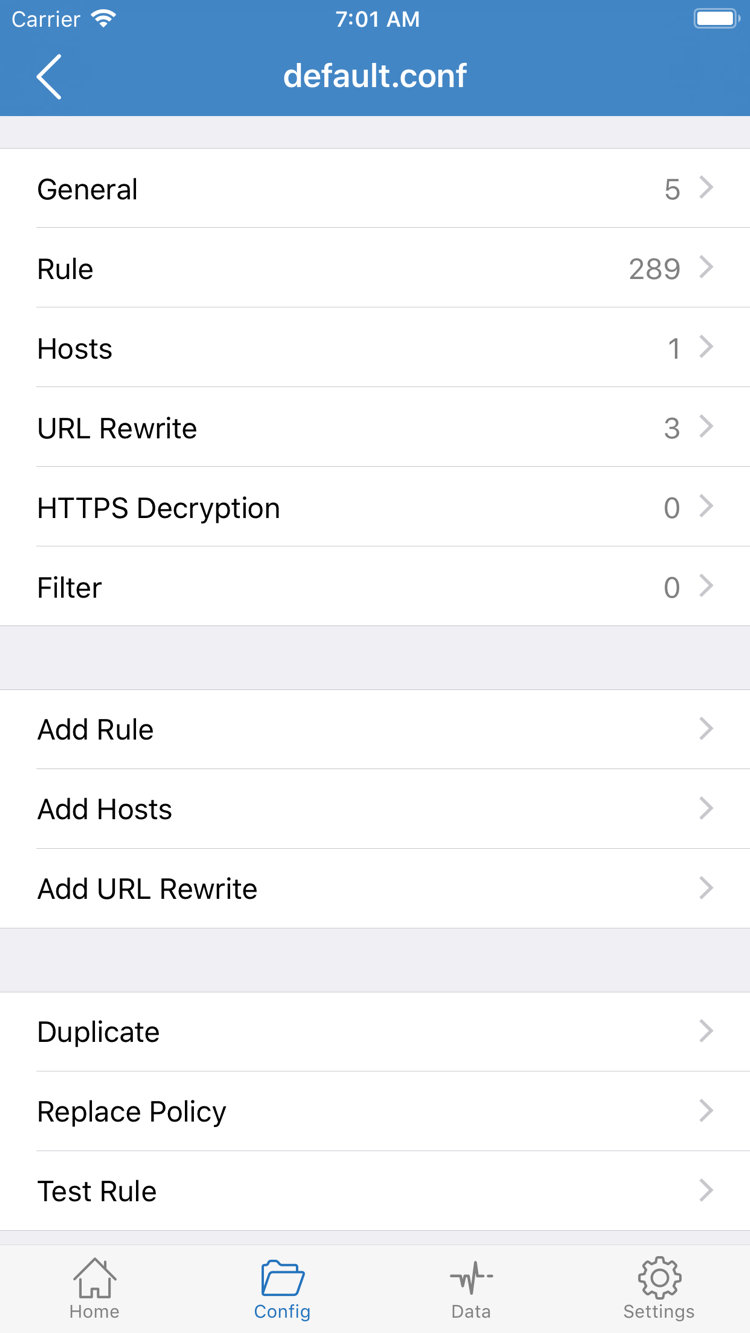
Config uses the rules in the currently selected configuration file to determine how requests are routed. Use this mode when you want different sites to use PROXY or DIRECT, and check the active file on the Config page. The General, Rule, Hosts, URL Rewrite, and HTTPS Decryption sections shown in the screenshot organize different types of settings. You don’t need to change every section just to complete your first connection, or enable features unrelated to your current goal.
Be sure to distinguish a server subscription from a configuration file. A server subscription typically updates the server list; a configuration file defines connection and routing behavior. Importing a server subscription doesn’t switch the active configuration file. On the Config page, open the file to review its contents and confirm it’s selected. Before editing, save a copy you can restore. Then use Rule or Add Rule to check the conditions, policy, and order for the site you’re troubleshooting.
[Rule]
DOMAIN-SUFFIX,example.com,PROXY
FINAL,DIRECT
This example routes example.com and its subdomains through PROXY, with FINAL,DIRECT as the fallback for other requests. example.com is an example domain, not a server or subscription address. Rules are evaluated from top to bottom, so an earlier, broader match can prevent a later rule from taking effect. For your first setup, it’s enough to understand this relationship. For the full syntax, read the configuration file sections guide.
Proxy and Direct
Proxy can help narrow down issues during initial troubleshooting by showing whether the current server’s proxy route can access a site. It doesn’t guarantee that every system request follows exactly the same route. Direct connects to the destination without a proxy and can serve as a baseline test of your network, but it can’t confirm that the server works. Neither mode can correct incorrect authentication details.
If you already have a specific configuration file, choose Config and test using its rules. If you can’t tell whether the issue is with the rules or the server, temporarily use Proxy for comparison, then restore the original mode when you’re done. See proxy mode guide for details on all three modes, and Direct guide for more about Direct. Once you’ve chosen a mode, turn on the connection switch.
Step 3 · Home / VPN authorization
Turn on the switch and complete authorization
Return to Home and check the selected entry under SERVER and the Global Routing mode. If you’ve just updated a subscription, make sure the previously selected entry is still there and that you haven’t selected a different entry with the same name. Shadowrocket connects using the currently selected server, not necessarily the last one you opened to view its details.
Find the switch beside Not Connected at the top and turn it on. The first time you connect, the system may ask for permission to let Shadowrocket add a VPN configuration. Check the app name in the prompt, tap Allow, and complete any required device verification. This permission lets the app create the corresponding network configuration on your device; it’s separate from a subscription’s validity or server authentication.
After authorization, return to Shadowrocket and check whether the status at the top of Home has changed from Not Connected to connected and the switch remains on. If a system confirmation appears, complete it before continuing. Don’t keep tapping the switch while authorization is still in progress. If you previously denied permission, try connecting again and follow the system prompts. If needed, check the VPN configuration in system settings instead of importing the same servers again.
The layout and system prompts may differ on iPad, but the order of checks is the same: select a server → choose Global Routing → turn on the switch → approve the system prompt. If your device is managed by an organization, its policies may restrict adding VPN configurations. Follow your device management requirements. Check the App Store listing for system requirements and compatibility; don’t rely on a screenshot alone to determine whether your device is supported.
After connecting, keep your network conditions unchanged for now. Don’t switch Wi-Fi networks, servers, and configuration files at the same time. If the status quickly returns to Not Connected, note whether it happened before or after authorization. That detail can help distinguish a system configuration issue from a connection parameter issue. For a closer look at the Home screen, read First launch and the Home screen.
Step 4 · Connectivity Test / Real-world access
Verify the connection and routing rules
Once the connection is stable, tap Connectivity Test on Home and check the result for the current server. A response indicates reachability with the selected test method, but doesn’t prove that every website, protocol, or request will work. The test value is not a download speed; don’t judge the result by the number alone instead of checking real-world access.
Next, open your browser and visit a site you know is working and that’s relevant to your test. Reload the page or make a new request rather than relying on content cached before you connected. Check that the page loads its text and essential resources, then try a link on the site. Seeing a page title alone doesn’t mean every request on the page succeeded.
Compare results using the selected mode
With Proxy selected, first check whether you can access the site. If the test responds but the website continues to fail, consider DNS, access to the destination, and transport parameters. Don’t immediately conclude that the server is working perfectly. With Direct selected, success only shows that the direct route works; it doesn’t verify the proxy connection.
In Config mode, test one site expected to match PROXY and another expected to match DIRECT, then check the corresponding rules in the active file. If both sites open, that alone doesn’t tell you which route they used. Check the rule order and any request records available in the app to identify the actual match. If your rules use domain conditions, remember that a page may also request resources from other domains. A match for the main domain doesn’t mean every resource uses the same policy.
For your first test, keep things simple: get one clearly defined connection route working, then gradually restore more complex routing. To compare servers, change one entry at a time and make a new request. To compare modes, keep the server and network conditions the same. This makes it easier to identify what caused a change and avoids mistaking a coincidental success after a network switch for the effect of a setting.
When you’re done, note the server you’ll use, the Global Routing mode, and the name of the active Config file. Don’t record or share passwords, full subscription links, or other sensitive information. If the basic connection and expected access both work, you’ve completed the quick start. Move on to troubleshooting only if you encounter a specific issue.
Step 5 · Settings / Diagnostics
Check common failure points
First, identify where the process fails: no imported entries, a failed server test, a switch that won’t stay on, or a connected status but inaccessible websites. Checking each stage in order is more likely to pinpoint the issue than changing several advanced settings at once. This section covers common first-time setup issues. For persistent problems, use the troubleshooting guide to investigate by symptom.
No servers appear after import
Check whether you selected Subscribe under Type, whether the link is complete, and whether the update returned an error. A regular web address, an account page, and a subscription link are different types of information. Don’t remove query parameters or post a link containing authentication details publicly. If the link can’t be retrieved or its contents can’t be recognized, ask your service provider to confirm the original details and supported format. Saving the same invalid link again won’t change the result.
Test fails or the connection drops
For a manually added server, recheck Type, Host, Port, authentication fields, and any required transport parameters. For an imported subscription, first confirm that its contents updated successfully. Then check that your underlying network is working and test other existing entries under the same conditions. If several entries fail at once, consider the current network conditions too; don’t immediately assume every server is invalid.
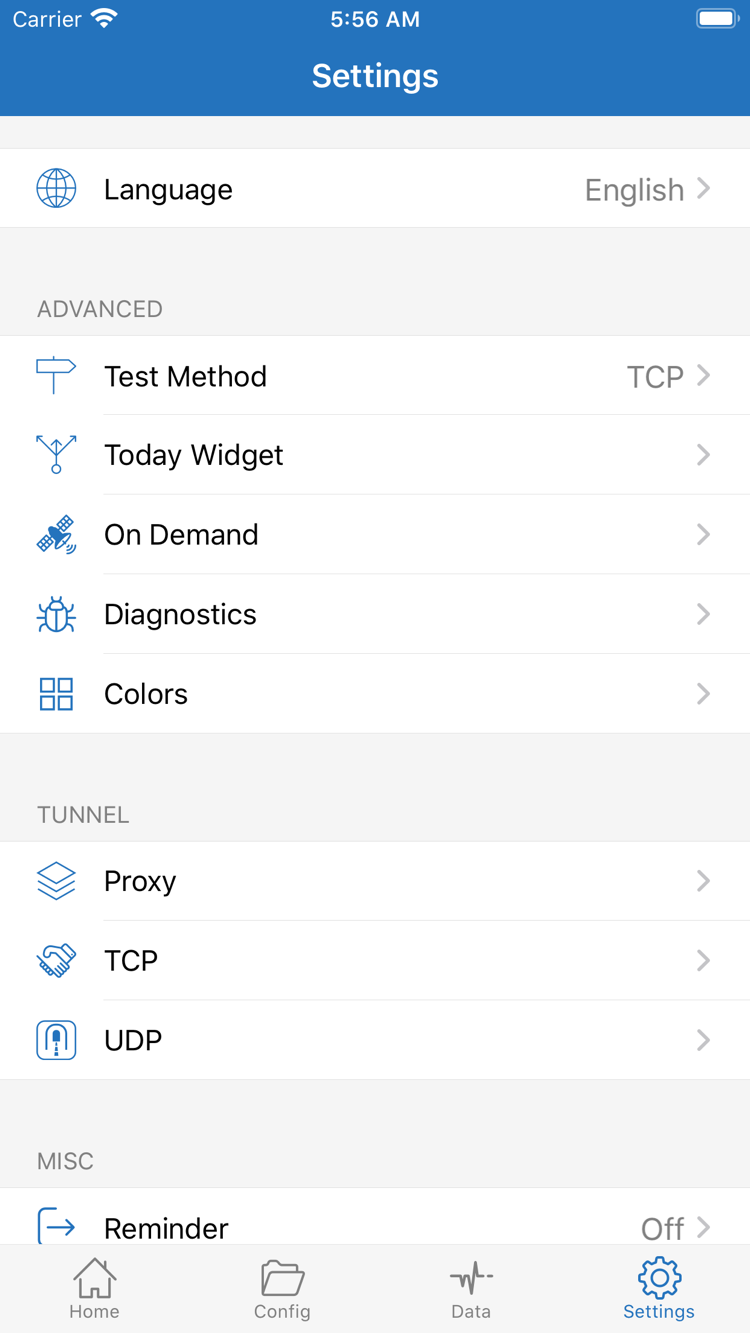
In Settings, check Test Method to see which test method is in use. Results mean different things when the method changes, so values from different methods aren’t directly comparable. For transport-related issues such as UDP, switching between TCP and UDP options in Settings isn’t a general fix. Confirm the server’s protocol requirements first, then check the relevant documentation.
The switch behaves unexpectedly or websites won’t load
If the switch won’t turn on, first check that system VPN authorization is complete, whether another VPN configuration is active, and whether device management restrictions apply. If the switch stays on but websites won’t load, check Global Routing and the active Config file. If Proxy works but Config doesn’t, focus on the rules, active file, and DNS settings instead of re-entering all the server details. For connection issues, see connection troubleshooting.
If Connectivity Test responds but domain access fails, start with the DNS resolution troubleshooting guide. Don’t replace an address with an unfamiliar one just because you see dns-server. DNS resolution and connecting are separate stages. Save the original value before making changes, change one setting at a time, and test again.
Automatic connections and diagnostic logs
If the connection returns after you’ve manually disconnected, check Settings to see whether On Demand has trigger conditions configured. For your first setup, confirm that a manual connection is stable before configuring automatic behavior. If On Demand rules already exist, note the original settings, then temporarily disable the triggers for comparison. Test Wi-Fi and cellular network changes separately so you don’t confuse a network change with an automatic trigger.
For further analysis, check Diagnostics in Settings. A record of the steps leading to the error, network type, and error text is more useful than simply saying “it doesn’t work.” Before sharing a record, hide server addresses, authentication details, and subscription content. After troubleshooting, restore the Global Routing and On Demand settings you need, then test real-world access again to confirm everything works end to end.